Using the Evaluation Tool
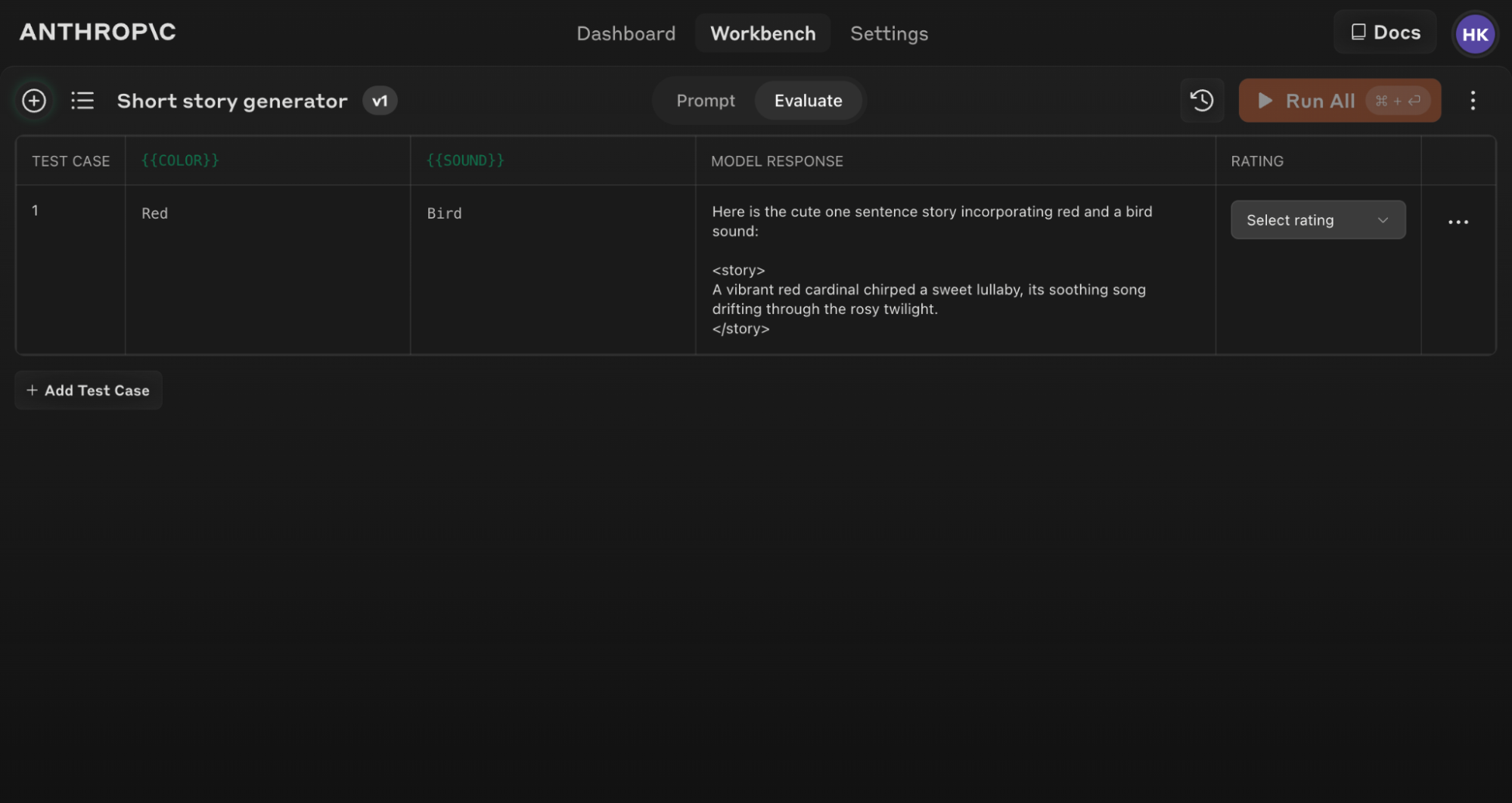
The Claude Console features an Evaluation tool that allows you to test your prompts under various scenarios.
Accessing the Evaluate Feature
To get started with the Evaluation tool:
- Open the Claude Console and navigate to the prompt editor.
- After composing your prompt, look for the 'Evaluate' tab at the top of the screen.
Generating Prompts
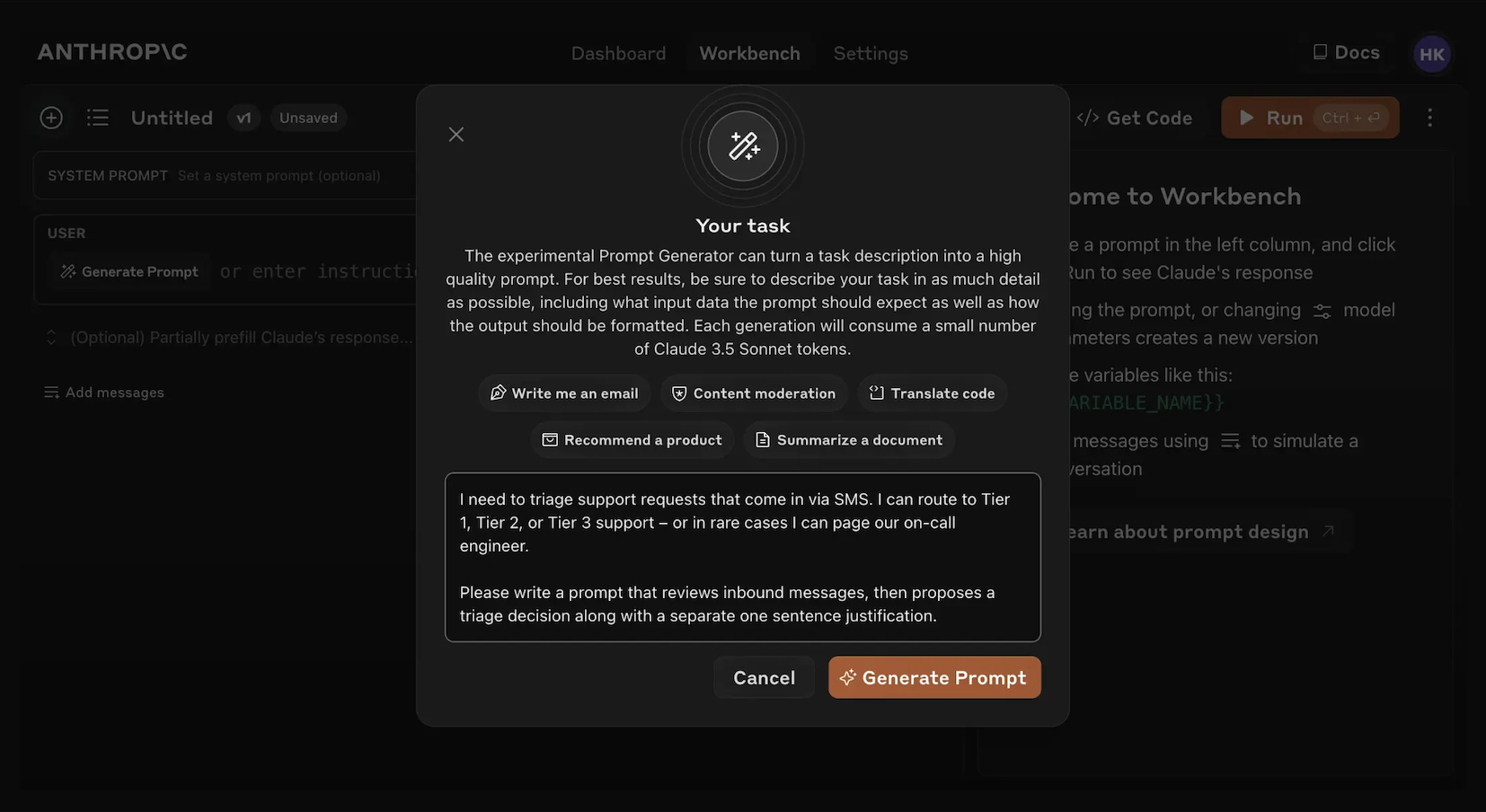
The Console offers a built-in prompt generator powered by Claude Opus 4.1:
This feature makes it easier to create prompts with the appropriate variable syntax for evaluation.
Creating Test Cases
When you access the Evaluation screen, you have several options to create test cases:
- Click the '+ Add Row' button at the bottom left to manually add a case.
- Use the 'Generate Test Case' feature to have Claude automatically generate test cases for you.
- Import test cases from a CSV file.
To use the 'Generate Test Case' feature:
Editing this allows you to customize and fine tune the test cases that Claude generates to greater precision and specificity.
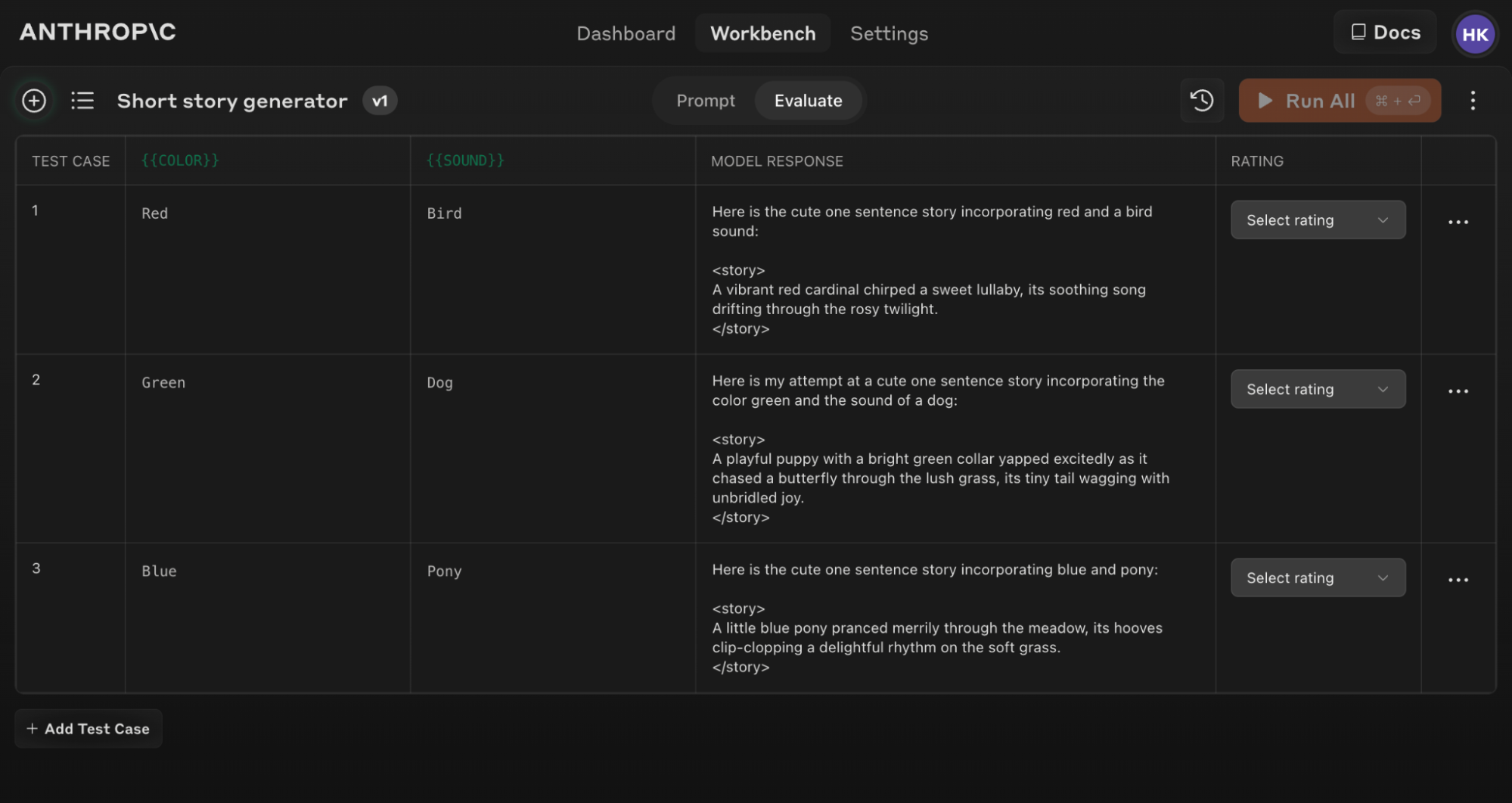
Here's an example of a populated Evaluation screen with several test cases:
Tips for Effective Evaluation
In this task, you will generate a cute one sentence story that incorporates two elements: a color and a sound.
The color to include in the story is:
<color>
{{COLOR}}
</color>
The sound to include in the story is:
<sound>
{{SOUND}}
</sound>
Here are the steps to generate the story:
1. Think of an object, animal, or scene that is commonly associated with the color provided. For example, if the color is "blue", you might think of the sky, the ocean, or a bluebird.
2. Imagine a simple action, event or scene involving the colored object/animal/scene you identified and the sound provided. For instance, if the color is "blue" and the sound is "whistle", you might imagine a bluebird whistling a tune.
3. Describe the action, event or scene you imagined in a single, concise sentence. Focus on making the sentence cute, evocative and imaginative. For example: "A cheerful bluebird whistled a merry melody as it soared through the azure sky."
Please keep your story to one sentence only. Aim to make that sentence as charming and engaging as possible while naturally incorporating the given color and sound.
Write your completed one sentence story inside <story> tags.
This structure makes it easy to vary inputs ({{COLOR}} and {{SOUND}}) and evaluate outputs consistently.
Understanding and comparing results
The Evaluation tool offers several features to help you refine your prompts:
- Side-by-side comparison: Compare the outputs of two or more prompts to quickly see the impact of your changes.
- Quality grading: Grade response quality on a 5-point scale to track improvements in response quality per prompt.
- Prompt versioning: Create new versions of your prompt and re-run the test suite to quickly iterate and improve results.
By reviewing results across test cases and comparing different prompt versions, you can spot patterns and make informed adjustments to your prompt more efficiently.
Start evaluating your prompts today to build more robust AI applications with Claude!